.png%3Ftoken%3DeyJraWQiOiJzdG9yYWdlLXVybC1zaWduaW5nLWtleV9jZWQwMGE3Zi02MThhLTRlMWQtYWQ5My05MDYxMmI5N2M5MTAiLCJhbGciOiJIUzI1NiJ9.eyJ1cmwiOiJibG9nLWltYWdlcy93ZWJmbG93IEZBUSBhcnRpY2xlL2ltZy1hcnRpY2xlLXdlYmZsb3cgKDEpLnBuZyIsImlhdCI6MTc3MDQ2ODg1NSwiZXhwIjo0OTI0MDY4ODU1fQ.26ZJ3R5eN1Z-0rvtg7Nd41WDLDrxmTbTkLAnjH8cjYE&w=3840&q=75)
For who is this article on FAQPage, Webflow CMS, and Rich results
This article is for people who follow the following 5 criteria:
- You use the Webflow CMS to manage your Frequently Asked Questions throughout your site.
- You want to improve your SEO by adding the Rich Result (Structured Data) FAQPage to your FAQ.
- You want this solution to work even for nested CMS items.
- You want to make your life easy: updating the CMS content should automatically update the Rich Result code.
- You are not looking for a hack, you are looking for a real solution that Google recommends.
Webflow CMS and nesting collections
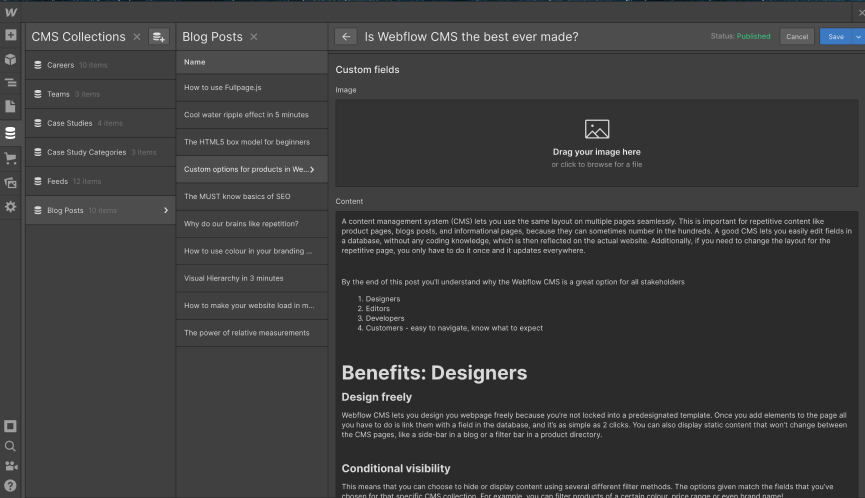
This solution works even if you use nested Webflow CMS collections.
Many webflow experts swear by the Webflow CMS feature. It combines easy content management with the superpower of the Webflow designer interface. You can even nest CMS lists inside CMS items. Here is a tutorial.
Nested CMS lists have many benefits. Your content becomes more manageable: manage articles on one side, manage FAQs on another. You can store more content: 30 CMS fields per collection, two collections, that’s 60... I think. Your design freedom also increases thanks to these new CMS fields.
JSON-LD and Microdata: two Google-approved languages for rich results
JSON-LD Scripts
The first method is the JSON-LD method. Here, we add a <script> tag with a json inside it. The JSON has a specific format. Here is an example for NewsArticle.
You can add this to your HTML Head or the HTML document (this works as well). And with webflow CMS, you can add variables directly in the content like you see in the image.
<script type="application/ld+json">
   {
      "@context": "https://schema.org",
      "@type": "NewsArticle",
      "headline": "Title of a News Article",
       "image": [ "https://example.com/photos/1x1/photo.jpg"],
      "datePublished": "2024-01-05T08:00:00+08:00",
      "dateModified": "2024-02-05T09:20:00+08:00",
      "author": [{
          "@type": "Person",
         "name": "Jane Doe",
        "url": "https://example.com/profile/janedoe123"
      },{
         "@type": "Person",
         "name": "John Doe",
         "url": "https://example.com/profile/johndoe123"
      }]
   }
</script>
Microdata: the HTML based technique
The other way is Microdata. It leverage HTML attributes (additional information in the HTML opening element. This means don’t really need to add the content a second time.
You do need to add and respect the nomenclature of the HTML attributes for Microdata.
Here is an example for NewsArticle in Microdata. Four HTML attributes need to appear in the HTML document in order to work: itemscope, itemtype, itemprop, content. itemscope is a bollean attribute, meaning you don’t need to add a key-value pair, just add that one word. itemtype is the attribute that will help you define the strucutre data type, so for example, you will have itemtype="https://schema.org/NewsArticle" for adding NewsArticle rich results. itemprop further details what data in wihting this HMTL element. they refer to inforamtion necessary for the RR to be conplete. ex: itemprop="datePublished". Finally, we have content, content="2024-01-05T08:00:00+08:00" will add the actual content.
<div itemscope itemtype="https://schema.org/NewsArticle">
   <div itemprop="headline">Title of News Article</div>
      <meta itemprop="image" content="https://example.com/photos/1x1/photo.jpg" />
      <meta itemprop="image" content="https://example.com/photos/4x3/photo.jpg" />
     <img itemprop="image" src="https://example.com/photos/16x9/photo.jpg" />
   <div>
   <span itemprop="datePublished" content="2024-01-05T08:00:00+08:00">
      January 5, 2024 at 8:00am
   </span>
...
Adding FAQPage to CMS: the solution is Microdata
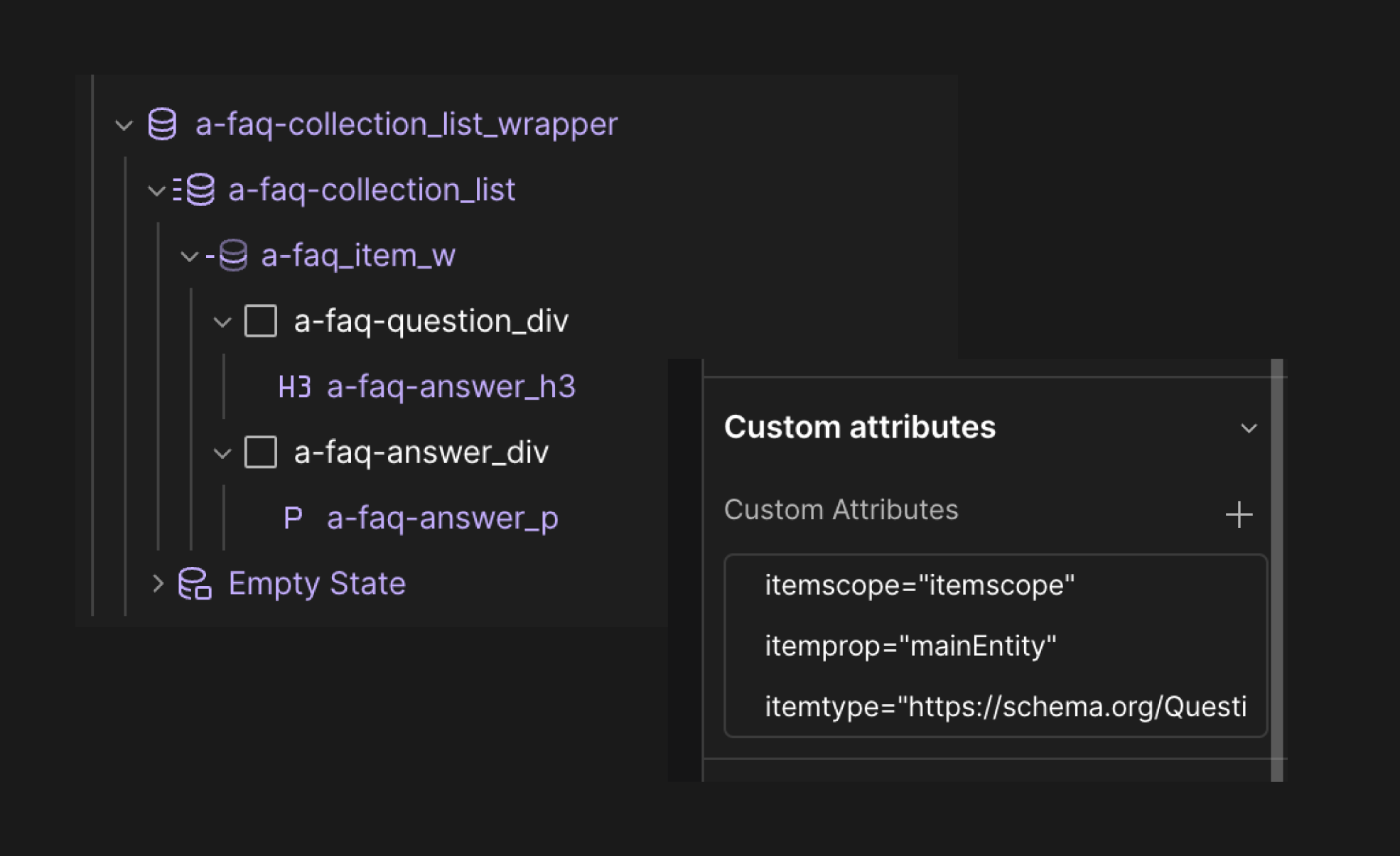
You need to add the right microdata HTML custom attributes to the right elements in your collection list. To summarize, you first need to tell google where to look for the FAQ section, then you need to tell Google where to find the FAQ item, etc.
1/ Identify the section
Add these HTML attributes to the collection list element, a-faq-collection_list in the image above:
- itemscope=”itemscope”
- itemtype=”https://schema.org/FAQPage”
2/ identify the FAQ item
Add these HTML attributes to collection item element, a-faq_item_w in the image above:
- itemscope=”itemscope”
- itemprop=”mainEntity”
- itemtype=”https://schema.org/Question”
3/ identify the question
Add this HTML attribute to a paragraph or Heading tag, a-faq-answer_h3 in the image above: itemprop=”name”.
4/ identify the answer
Add these HTML attributes to a wrapper, a-faq-answer_div in the image above:
- itemscope=”itemscope”
- itemprop=”acceptedAnswer”
- itemtype=”https://schema.org/Answer”
Add this HTML attributes to the p containing the answer, a-faq-answer_p in the image above: itemprop=”text”.
Test once you have added you FAQPage to the HTML
.png?token=eyJraWQiOiJzdG9yYWdlLXVybC1zaWduaW5nLWtleV9jZWQwMGE3Zi02MThhLTRlMWQtYWQ5My05MDYxMmI5N2M5MTAiLCJhbGciOiJIUzI1NiJ9.eyJ1cmwiOiJibG9nLWltYWdlcy93ZWJmbG93IEZBUSBhcnRpY2xlL2ltZy1hcnRpY2xlLXdlYmZsb3cgKDEpLnBuZyIsImlhdCI6MTc3MDQ4MzA3MiwiZXhwIjo0OTI0MDgzMDcyfQ.5u-OywzTLOinG8d1JmJo8ZvlJypLGVGuA_ZyqqQKZr4)
The best way to test is to verify with Google’s rich result testing tool. You can paste the URL, or simply a code snippet (see the tab above the input). The URL way has the advantage of being comprehensive, it will look at everything on the page, the Code snippet way, is much much faster.
I would not use the Schema.org test, the reason is, Google’s rules are more strict that Schema.org, even though, Schema.org is the organization that invented and keep the protocol alive.